

A BLENDER ADD-ON
BY SAINTRICCHI DESIGN
Your Blender.
Your palette.
A workspace should feel like yours.
Start with a theme. Change the details.
Make yourself at home.
A workspace to call your own.TAKE A CLOSER LOOK
01 / FIND YOUR STARTING POINT
A different colour.
A different feeling.
Twenty included presets.
Soft, deep, warm, cool — choose a direction.
Then take it somewhere personal.
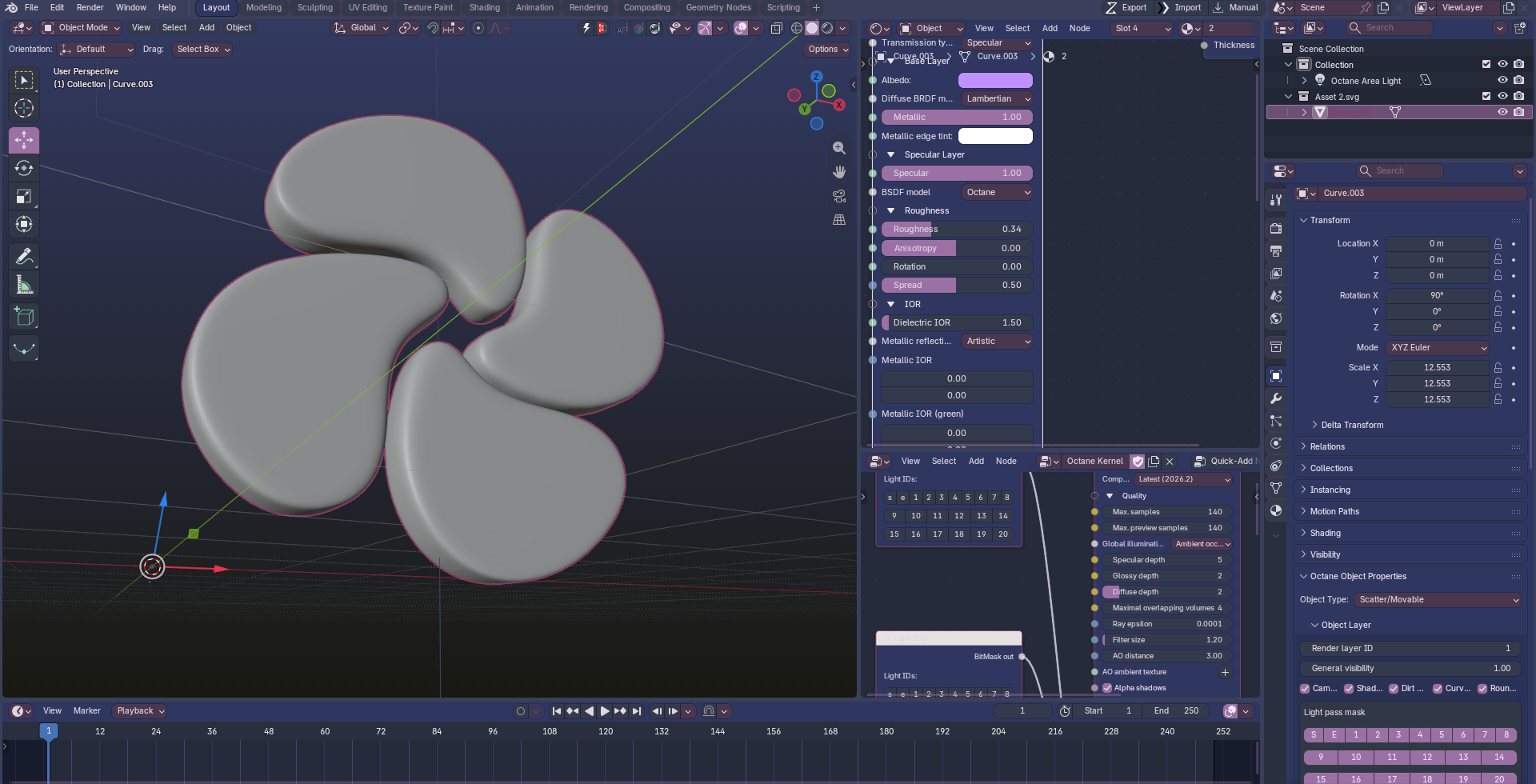
Same scene. Same interface. A whole new mood.
02 / MAKE IT YOURS
Your colours.
Every detail.
Open a colour control and refine the palette directly in your workspace. Buttons, panels, backgrounds, accents — the details are yours to decide.
04 / THE LITTLE THINGS
Small details.
Your signature.
Shape the controls. Balance the text. Refine the icons. Make the interface feel considered, right down to the finishing touches.
- Shape
- Roundness, bevel, emboss
- Type
- Text size and shadows
- Icons
- Opacity, saturation, border
- Weight
- Menu and panel opacity
05 / A LIGHTER TOUCH
Less surface.
More space.
Refine menu and panel opacity.
Let the workspace show through.
Find the balance that feels right.
Solid when you need it. Open when you want it.
TWO CONTROLS. YOUR BALANCE.06 / KEEP THE GOOD ONES
Found your look?
Make it stay.
Give your palette a name. Save it as a preset. Come back to it in another Blender file whenever you want.
- 01 Name your palette.
- 02 Save your preset.
- 03 Select and apply it again.
07 / TAKE YOUR PALETTE FURTHER
Let your
palette travel.
Bring in a Blender theme XML.
Export your theme when you need it.
Keep your colour workflow flexible.
A new starting point.
Your palette, in a theme file.
A LITTLE MORE YOU. EVERY TIME YOU OPEN BLENDER.
THE THEME LAB FOR YOUR BLENDER
Start with a palette.
Make it personal.
Coming soon
sxinthue is getting ready for release. Stay tuned.
- 20 included theme presets
- Custom UI and viewport colours
- Advanced interface styling
- Named presets you can save and reuse
- Blender theme XML import and export
BLENDER 5.0+
A FEW THINGS TO KNOW
Before you
make it yours.
Which Blender versions does it support?
sxinthue is built for Blender 5.0 and newer. The demonstrations on this page were recorded in Blender 5.2.2 LTS.
Can I edit the included themes?
Yes. Start with one of the 20 included presets, adjust the colours and details, and save the result as your own named preset.
Will it change my object's materials?
No. sxinthue changes theme colours and interface settings, including the viewport background. Your object materials and rendered appearance are separate.
Are presets saved inside a .blend file?
Presets are stored for the current Blender user, separately from individual .blend files. You can use them in different projects on the same computer.
Can I use Blender XML themes?
You can import a Blender theme XML as a starting point and export a theme XML. To keep an imported palette in sxinthue's Saved Presets list, save it as a named preset.
Why doesn't an imported XML theme change every part of the interface?
An XML theme from another source may have been created for an older Blender version. Blender can add, rename or reorganize theme settings between versions, so an older file may not define colours for every part of the current interface. In that case, an incomplete visual result reflects theme compatibility rather than an sxinthue import error. Use a theme updated for your Blender version, or adjust the remaining colours in Blender's theme preferences. If a compatible theme still imports incorrectly, contact support.
Where do I find the add-on after installation?
Open Blender Preferences, then Themes. After updating the add-on, restart Blender so the new modules load.